Free Fire is an exciting battle royale game, but lag, frame drops, high ping, and sudden freezing can make winning difficult. Whether you use an entry-level Android phone or a more powerful device, the right settings and maintenance habits can help improve your gaming experience. This Free Fire Lag Fix 2026 guide explains practical ways to reduce lag, improve performance, and enjoy smoother matches without unnecessary apps or risky modifications.
You do not always need a new phone to improve gameplay. Sometimes, adjusting graphics, freeing up memory, or fixing your internet connection can make a noticeable difference.
What Causes Lag in Free Fire?
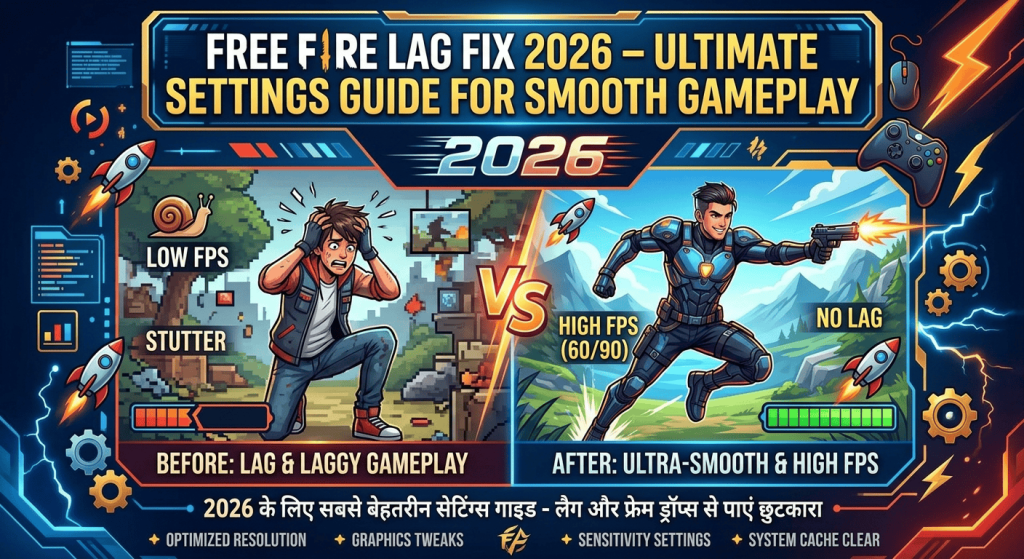
Before applying a fix, identify the type of lag you experience. Different problems require different solutions.
- FPS drops: The game looks choppy or animations are not smooth.
- High ping: Your character reacts slowly because of network delays.
- Freezing: The game temporarily stops responding.
- Overheating: Performance decreases after playing for a long time.
- Loading problems: The game takes too long to open or enter a match.
Understanding the cause helps you choose the most effective solution instead of changing every setting unnecessarily.
1. Use the Best Free Fire Graphics Settings
Graphics settings can significantly affect performance, particularly on budget Android phones. If your game stutters during fights, start by reducing the graphics workload.
Try these adjustments:
- Graphics: Choose Smooth or the lowest available setting.
- High FPS: Enable a higher frame-rate option only if your device supports it and remains stable.
- Shadows and visual effects: Reduce them if the game offers these options.
- Display brightness: Keep it at a comfortable level to help manage heat and battery use.
The best configuration depends on your phone’s processor, RAM, and cooling system. Higher graphics settings may look attractive, but stable performance is often more useful during intense battles.
After changing settings, play a short match and check whether movement, aiming, and camera control feel smoother.
2. Close Background Apps Before Playing
Background applications can use RAM, processing power, and internet bandwidth. Messaging apps, browsers, video players, and downloads may compete with Free Fire for system resources.
Before launching the game:
- Close unnecessary applications.
- Pause large downloads and app updates.
- Restart your phone if it has been running for a long time.
- Open Free Fire and test its performance.
Avoid aggressive third-party RAM cleaners or so-called game boosters that promise unrealistic improvements. Some can display intrusive ads, consume resources, or create privacy risks.
3. Fix High Ping and Internet Lag
A powerful phone cannot completely solve network lag. If enemies teleport, shots register late, or your character responds slowly, your connection may be the problem.
Follow these tips to improve your connection:
- Use a stable Wi-Fi network when available.
- If using mobile data, move to an area with a stronger signal.
- Pause streaming, downloads, and other bandwidth-heavy activities.
- Avoid switching repeatedly between Wi-Fi and mobile data during a match.
- Select the appropriate game server or region if the option is available.
A lower ping generally means less network delay, but performance also depends on packet loss, server conditions, and connection stability. A VPN is not a guaranteed solution and may increase latency.
4. Free Up Storage Space on Your Android Phone
When your phone has very little free storage, general performance and app operations may suffer. Keeping sufficient space available can help your device run more reliably.
Open your phone’s storage settings and review large videos, duplicate files, unused apps, and old downloads. Remove only files you no longer need.
You can also clear Free Fire’s cache through Android’s app settings if temporary files appear to be causing problems. Do not select Clear Data or uninstall the game without checking your account-linking and recovery details first, because local settings or other data may be removed.
For more Android gaming resources, visit Free Fire APKs.
5. Prevent Overheating During Long Gaming Sessions
Heat can cause a phone to reduce its performance to protect its components. This may lead to FPS drops, slower responses, or unexpected stuttering.
To reduce overheating:
- Play in a cool, well-ventilated environment.
- Avoid playing while your phone is extremely hot.
- Lower graphics settings if temperatures rise quickly.
- Remove a thick phone case temporarily if it traps heat.
- Take short breaks between extended sessions.
Avoid placing your phone in a refrigerator or using ice to cool it. Sudden temperature changes and condensation can damage electronic components.
6. Update Free Fire and Your Android System
Game updates may include bug fixes, compatibility improvements, and performance changes. Running an outdated version can sometimes cause unexpected issues.
Open the Google Play Store and check whether an update is available for Free Fire. Also, check your phone’s system settings for compatible Android updates.
Use trusted sources for game information, including the official Garena Free Fire news page.
Avoid modified APKs, unofficial performance patches, and suspicious tools claiming to unlock hidden FPS settings. They may introduce security risks or violate game rules.
7. Adjust Your Phone Settings for Better Performance
Your Android settings can also influence gameplay. The available options vary between phone brands, so use features supported by your device.
Consider these adjustments:
- Enable your phone’s built-in game mode if it provides useful performance controls.
- Turn off battery-saving mode during gaming if it restricts performance.
- Enable Do Not Disturb to reduce interruptions.
- Keep unnecessary background synchronization to a minimum.
- Use a supported refresh-rate setting that provides stable performance.
Do not assume that the highest refresh rate always produces the best result. Your phone must support the setting, and the game must be capable of using it. Stability matters more than a number displayed in your phone settings.
How to Identify the Right Free Fire Lag Fix
Use the following guide to match your problem with a practical solution.
| Problem | Recommended action |
|---|---|
| Choppy movement | Lower graphics settings |
| High ping | Improve network stability |
| Random freezing | Close background apps and restart |
| Lag after long sessions | Let the phone cool down |
| Low storage warning | Remove unnecessary files |
| Problems after an update | Check for another official update and restart the game |
Make one or two changes at a time. This makes it easier to identify which adjustment actually improves performance.
Frequently Asked Questions
Why is Free Fire lagging on a good phone?
Even powerful phones can experience lag because of unstable internet, overheating, background applications, software bugs, or temporary server problems. Check both network and device performance before assuming your hardware is the issue.
Which graphics setting is best for low-end phones?
Smooth or the lowest available graphics option is a sensible starting point. Enable higher FPS only if the device supports it and can maintain stable performance.
Can I fix Free Fire lag without downloading an app?
Yes. You can lower graphics settings, close background applications, improve your connection, free up storage, and prevent overheating without installing additional tools.
Does high ping mean low FPS?
No. High ping is usually a network-delay problem, while low FPS is generally related to device performance. Both can make gameplay feel unresponsive, but they require different fixes.
Conclusion
This Free Fire Lag Fix 2026 guide covers seven practical ways to improve gameplay, from adjusting graphics and closing background apps to reducing ping and managing phone temperature. Start with the solution that matches your problem, then test your game before making further changes.
For most players, the best approach is to use stable graphics settings, maintain a reliable internet connection, and keep the phone cool. Avoid suspicious boosters and modified game files, and check official Garena updates when problems continue. With the right adjustments, you can work toward smoother gameplay and a more consistent Free Fire experience.