Free Fire Sensitivity Settings 2026 can help you improve aiming control, make headshot attempts more consistent, and react faster during close-range fights. However, there is no single sensitivity setup that works perfectly for every player. Your phone’s screen size, touch response, frame rate, finger movement, and personal playstyle all affect the results.
In this guide, you will find recommended starting settings for general sensitivity, red dot, scopes, and free look. You will also learn how to adjust your settings for headshots, reduce shaky aim, improve drag shots, and choose suitable controls for low-end Android phones.
These values are starting points for practice, not official Garena presets or guaranteed headshot settings. Test them in Training Ground and make small adjustments until your aim feels comfortable.
Best Free Fire Sensitivity Settings 2026
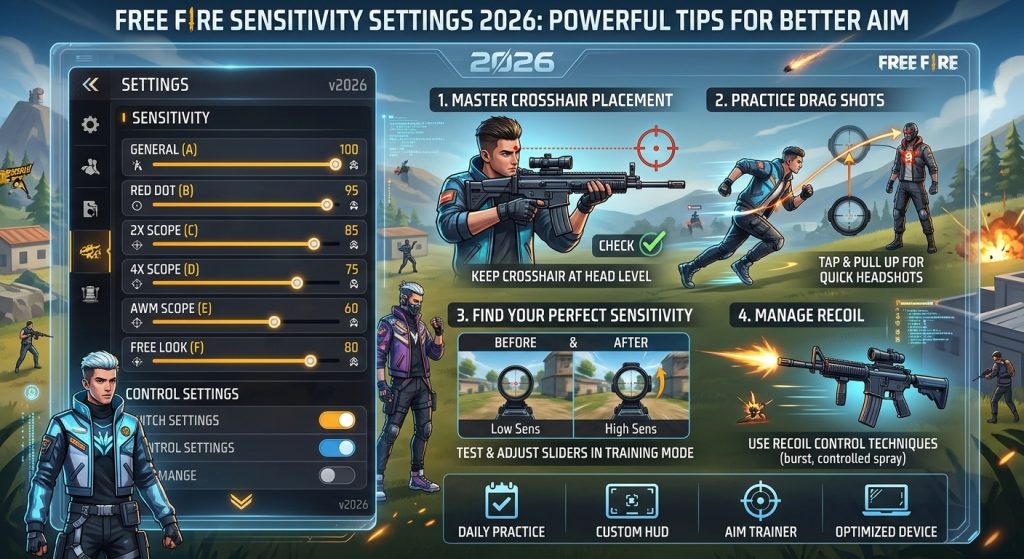
Free Fire provides sensitivity controls that affect how quickly the camera and aim move when you swipe your screen. Higher sensitivity generally allows faster movement, while lower sensitivity can make precise adjustments easier.
Garena has introduced settings improvements in its official updates, including more detailed explanations for sensitivity and controls. Its patch notes have also documented a sensitivity cap of 200, so check the slider range displayed in your current game version before applying any numbers. Read Garena’s official patch notes.
Here is a suggested setup to test if your sensitivity sliders use a 0–200 scale.
| Sensitivity option | Starting value |
|---|---|
| General | 185 |
| Red Dot | 180 |
| 2x Scope | 170 |
| 4x Scope | 155 |
| Sniper Scope | 105 |
| Free Look | 140 |
These values are not a guaranteed best setup for every device. If your game displays a different slider range, adapt the values to that range instead of copying them blindly.
1. General Sensitivity
Suggested starting value: 185/200
General sensitivity affects camera movement when you aim without a scope. It is particularly important when tracking enemies nearby or moving your crosshair quickly between targets.
A higher setting may help you turn faster and perform upward swipes during drag shots. However, excessive sensitivity can make your crosshair move past an enemy.
Adjustment tip: If your aim moves too far when you swipe, reduce General by 5 points. If you struggle to move your crosshair quickly enough, increase it gradually.
2. Red Dot Sensitivity
Suggested starting value: 180/200
Red Dot sensitivity helps control aim while using a red dot sight. It can be useful in close-to-medium-range fights where you need to track moving opponents.
If your aim frequently passes over an enemy’s head, lower this setting slightly. If the crosshair feels slow when following a moving target, try increasing it by 3–5 points.
The goal is to move quickly without losing control of your crosshair.
3. 2x Scope Sensitivity
Suggested starting value: 170/200
The 2x scope can be useful for engagements at medium distances. Your aim needs to follow an enemy while remaining stable enough for controlled shots.
Start with a value around 170 and test it with weapons you regularly use. If your aim feels unstable, lower the sensitivity a little. If tracking feels too slow, increase it in small steps.
Avoid changing several sensitivity options at the same time, because it becomes harder to identify which adjustment helped.
4. 4x Scope Sensitivity
Suggested starting value: 155/200
A 4x scope magnifies the target, so small finger movements may cause noticeable changes in your aim. For this reason, some players prefer a lower setting than their General or Red Dot sensitivity.
Try 155 as a starting point. If your crosshair shakes or moves past distant targets, test a lower value. If it takes too long to follow an enemy, raise it slightly.
Your preferred setting may also depend on your phone’s screen size and the weapons you use.
5. Sniper Scope Sensitivity
Suggested starting value: 105/200
Sniper aiming usually benefits from controlled movements because accurate positioning is important when targeting distant opponents.
A lower starting value can help reduce accidental overcorrection. Nevertheless, a setting that is too low may make it difficult to follow a moving target.
Test your sniper sensitivity with repeated aiming exercises. Focus on placing the crosshair accurately instead of trying to make every adjustment as fast as possible.
6. Free Look Sensitivity
Suggested starting value: 140/200
Free Look sensitivity affects how quickly you can look around without directly changing your character’s movement direction. It is useful for checking your surroundings, spotting nearby activity, and maintaining awareness.
If you frequently look around while moving, try a setting around 140. Increase it if camera movement feels sluggish or reduce it if you turn too far.
Free Look does not directly improve weapon accuracy, but comfortable camera control can support better awareness during a match.
Best Sensitivity Settings for Headshots
Many players search for sensitivity settings that make headshots easier. Sensitivity can help you control your crosshair, but it cannot automatically guarantee a headshot. Your timing, movement, weapon choice, and practice still matter.
Try the following approach when working on drag shots:
- Set General sensitivity to around 185.
- Set Red Dot sensitivity to around 180.
- Enter Training Ground and choose a weapon you regularly use.
- Place the crosshair near the upper body of a practice target.
- Make a short, controlled upward swipe while firing.
- Repeat the movement and adjust sensitivity only when necessary.
If your crosshair repeatedly passes above the target, lower the relevant sensitivity slightly. If it does not reach the intended area, increase the setting in small increments.
Important: Do not copy a pro player’s settings without considering your device and finger movement. The same numbers can feel different on two phones.
How to Adjust Sensitivity for Low-End Android Phones
Players using entry-level or older Android phones may experience frame drops, touch delays, or inconsistent performance. Sensitivity adjustments can help with control, but they cannot fully resolve hardware or performance problems.
Use these practical tips to improve your experience.
Use Stable Graphics Settings
Choose graphics options that your phone can handle smoothly. If high visual settings cause stuttering, try lowering the graphics quality and testing a stable frame rate.
A smoother game can make aiming feel more consistent, although actual performance depends on the device and game version.
Make Small Sensitivity Changes
Avoid changing every slider after each match. Start with the recommended values, play a few practice rounds, and change only one setting at a time.
For example, if close-range aiming feels too fast, reduce General sensitivity by 5 points and test again.
Check Your Touchscreen
Clean your screen and make sure your fingers move smoothly. A screen protector that interferes with touch response may also affect your control.
If your phone has persistent touch problems in other apps, sensitivity changes inside Free Fire may not solve the underlying issue.
Close Unnecessary Background Apps
Background activity can affect performance on some devices. Before playing, close apps you do not need and avoid running unnecessary downloads.
If your phone becomes hot, allow it to cool down. Heat-related performance limits may make aiming feel less consistent during longer sessions.
Best Sensitivity for Different Playing Styles
Your ideal setup depends on how you approach fights. Use these general recommendations as a starting point rather than fixed rules.
| Playing style | What to prioritize |
|---|---|
| Close-range rusher | Responsive General and Red Dot controls |
| Medium-range fighter | Balanced Red Dot and 2x Scope control |
| Long-range player | More controlled 4x and Sniper Scope movement |
| Beginner | Comfortable, consistent sensitivity across settings |
| Low-end phone user | Stable performance and small adjustments |
Sensitivity for Close-Range Fights
Close-range combat often requires quick camera movement and rapid target tracking. A slightly higher General sensitivity may help, provided that you can still control your crosshair.
Practice moving between two targets and stopping your aim accurately. If you frequently overshoot, lower the setting rather than increasing it further.
Sensitivity for Long-Range Fights
Long-range aiming often requires more precise corrections. Try a lower 4x Scope and Sniper Scope setting than your General sensitivity.
Practice tracking a target at a distance and making small corrections. Do not judge your setup from a single shot; repeat the exercise to identify a consistent pattern.
Sensitivity for Beginners
Beginners should focus on comfortable controls rather than copying advanced settings. Start with the suggested values, practice with familiar weapons, and change one slider at a time.
Once you can consistently track targets, experiment with small adjustments to improve your personal control.
How to Change Free Fire Sensitivity Settings
Follow these steps to adjust sensitivity in the game:
- Open Free Fire or Free Fire MAX.
- Go to the game’s Settings menu.
- Find the Sensitivity section. Depending on your version, settings may appear under an in-match or related settings tab.
- Review the available sliders.
- Enter or select your preferred values.
- Open Training Ground and test your aim.
- Adjust the settings gradually until they feel comfortable.
The exact menu layout may change after game updates. If the option appears in a different place, check the current in-game settings and the official Garena Free Fire website.
Common Sensitivity Mistakes to Avoid
Even a reasonable setup can feel ineffective if you make too many changes at once. Avoid these common mistakes:
- Copying settings without testing: Another player’s device and control style may be different.
- Setting every slider to maximum: Higher sensitivity is not always better for precise aiming.
- Changing all values together: You may not know which adjustment improved or worsened your aim.
- Expecting instant results: Developing consistent finger movement takes practice.
- Ignoring performance issues: Frame drops and touch problems can affect aim regardless of sensitivity.
- Using unauthorized aim tools: Avoid third-party tools, modified game clients, or scripts that claim to provide automatic headshots. Garena identifies unauthorized third-party programs and modified clients as prohibited. Check the official support information for guidance.
Frequently Asked Questions
What are the best Free Fire Sensitivity Settings 2026?
A useful starting setup on a 0–200 scale is General 185, Red Dot 180, 2x Scope 170, 4x Scope 155, Sniper Scope 105, and Free Look 140. Test these values on your own device and adjust them to suit your aim.
Which sensitivity is best for headshots?
General and Red Dot sensitivity are useful starting points for practicing drag shots. However, no sensitivity value guarantees headshots. Practice crosshair placement, controlled upward swipes, and consistent timing.
Should I use maximum sensitivity?
Not necessarily. Very high sensitivity may help with fast movement but can make precise aiming harder. Choose settings that allow you to move quickly and stop accurately.
Do sensitivity settings work the same on every phone?
No. Screen size, touch response, frame rate, and personal finger movement can affect how sensitivity feels. You should test and adjust the settings for your device.
Can sensitivity fix lag in Free Fire?
Sensitivity cannot directly fix network lag, frame drops, or hardware limitations. Try stable graphics settings, close unnecessary background apps, and check your network connection if the game feels delayed.
Should I change my settings after every update?
Review the settings after a major update, especially if the controls or slider range have changed. However, avoid changing your entire setup without testing whether your previous settings still work well.
Conclusion
The best Free Fire Sensitivity Settings 2026 are the ones that give you comfortable, repeatable control on your own device. Starting with General 185, Red Dot 180, 2x Scope 170, 4x Scope 155, Sniper Scope 105, and Free Look 140 can provide a useful baseline when your sliders use a 0–200 scale.
Practice in Training Ground, make small adjustments, and focus on accuracy rather than simply maximizing every value. With consistent practice and stable game performance, you can develop better aim control and become more confident during close-range and long-range fights.
For more Free Fire guides, visit ffapks.org.in and check official game updates through Garena Free Fire.