Playing Free Fire on a low-end phone can be challenging when the game lags, drops frames, or becomes slow during intense battles. The good news is that choosing the right graphics settings can help improve gameplay, reduce unnecessary load on your device, and make aiming more comfortable.
This Free Fire Graphics Settings 2026 guide explains the best settings for low-end Android phones. Whether you experience frame drops, overheating, or delayed controls, these tips can help you find a better balance between performance and visual quality.
Best Free Fire Graphics Settings 2026 for Low-End Phones
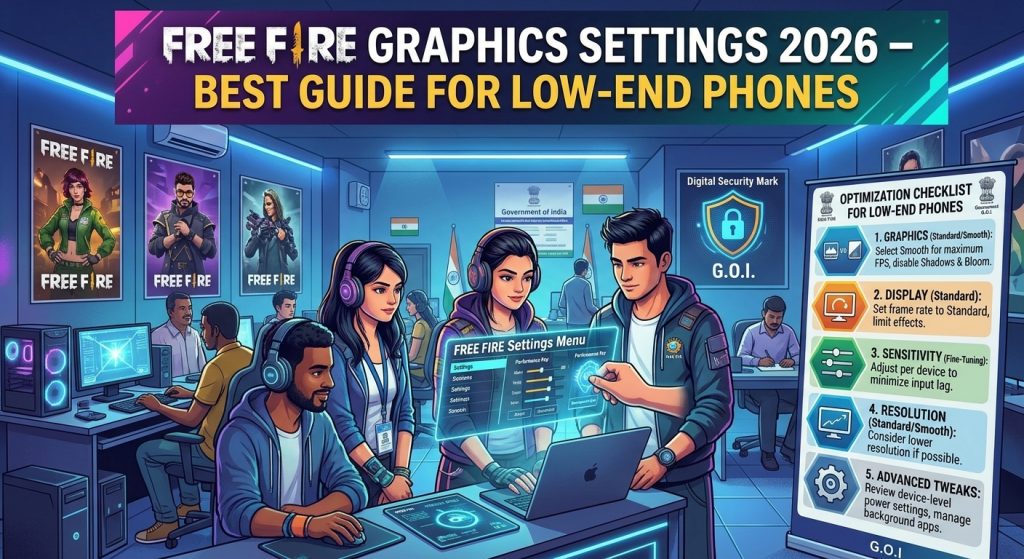
If your phone has limited RAM or an entry-level processor, start with lower graphics settings. These options can reduce the workload on your device and may help the game run more smoothly.
Recommended settings can vary by phone model and game version, so use the following table as a starting point rather than a guaranteed solution.
| Setting | Recommended option | Why it helps |
|---|---|---|
| Graphics | Smooth or the lowest available option | Reduces visual workload |
| High Resolution | Off or low, if available | Can reduce GPU load |
| High FPS | Normal or a stable supported option | Helps maintain consistent performance |
| Shadow | Off, if available | Reduces extra rendering work |
| Auto Scale | Enable if available and helpful | May adjust visual quality automatically |
| Brightness | Comfortable level | Helps visibility without unnecessary screen brightness |
Not every option appears on every device or game version. Choose the settings available in your current version of Free Fire.
1. Choose Smooth Graphics for Better Performance
Graphics quality affects how much work your phone must do to render the game. Higher-quality visuals can look attractive, but they may cause lag on devices with limited processing power.
For low-end phones, Smooth graphics is a good first choice if the option is available.
Benefits may include:
- More consistent gameplay on supported devices.
- Less pressure on the graphics processor.
- Fewer performance drops during busy scenes.
- Better responsiveness when the device is struggling with high visual settings.
Start with the lowest graphics option, play a few matches, and increase quality only if performance remains stable.
2. Select a Stable FPS Setting
FPS means frames per second. It describes how many individual frames the game displays each second.
A higher frame rate can make movement and aiming feel smoother, but maintaining it requires enough processing power and effective heat management.
For a low-end phone:
- Open Free Fire and enter the settings menu.
- Find the available high-FPS or frame-rate option.
- Start with a normal or moderate setting if your phone struggles.
- Test a match and watch for stuttering or overheating.
- Increase the setting only if your device can maintain stable performance.
A stable frame rate is often more useful than a higher setting that causes frequent drops.
3. Turn Off Unnecessary Visual Effects
Extra visual effects can add to the workload on some devices. If your version of Free Fire offers options for shadows, high resolution, or similar effects, reduce or disable them when performance is your priority.
This may help older phones handle busy scenes more comfortably.
Keep in mind that visual settings differ between game versions and devices. Do not worry if a specific option mentioned in an online guide does not appear in your settings menu.
4. Close Background Apps Before Playing
Free Fire is not the only app using your phone’s resources. Browsers, video apps, downloads, and background processes may compete for memory and processing time.
Before launching the game:
- Close apps you are not using.
- Pause large downloads and updates.
- Avoid recording video in the background if it causes lag.
- Restart your phone if it has been running slowly for a long time.
- Keep enough free storage available for normal app operation.
Closing unnecessary apps may improve performance, especially on devices with limited RAM. However, avoid aggressive third-party task killers that promise unrealistic performance improvements.
5. Reduce Overheating During Long Sessions
Heat can cause a phone to reduce processor performance to protect its components. When this happens, Free Fire may begin to lag even if it ran smoothly at the start of a match.
To reduce overheating:
- Play in a cool, well-ventilated area.
- Avoid direct sunlight.
- Remove a thick phone case if it traps heat and it is safe to do so.
- Avoid playing while the phone is charging if it becomes excessively hot.
- Take breaks between long gaming sessions.
If your phone becomes unusually hot, stop playing and let it cool. Do not place it in a refrigerator or expose it to sudden temperature changes.
6. Keep Free Fire and Your Phone Updated
Game updates may include bug fixes, compatibility changes, and performance improvements. Phone system updates can also address certain stability issues.
For safer updates, use the official game distribution source available for your device and region.
You can visit the official Free Fire website for game information. Before updating, make sure your device has enough storage and a reliable internet connection.
If a new update causes performance problems, check official support information before attempting complicated fixes.
7. Use a Stable Internet Connection
Graphics settings affect rendering performance, but they do not directly fix every type of lag.
If your character moves with a delay, shots register late, or you experience connection warnings, the issue may be related to network latency rather than graphics.
Try these steps:
- Use a reliable Wi-Fi connection or stable mobile data.
- Move closer to your Wi-Fi router if the signal is weak.
- Pause large downloads on the same network.
- Avoid switching networks during a match.
- Check whether other online apps are also experiencing connection problems.
Lower graphics settings may help visual stuttering, while a more stable connection can help reduce network-related delays. These are different problems and may require different solutions.
8. Find the Right Balance for Your Phone
Not every low-end phone performs in the same way. Available RAM, processor capability, screen resolution, battery condition, and temperature can all affect gameplay.
Use this simple testing method:
- Set graphics to Smooth or the lowest available quality.
- Choose a moderate, supported frame-rate setting.
- Disable unnecessary visual effects if the options are available.
- Play a practice session or a short match.
- Increase one setting at a time if performance is stable.
- Return to the previous setting if lag or heat increases.
Changing one setting at a time makes it easier to identify what works best on your phone.
Common Free Fire Performance Problems and Fixes
| Problem | Possible solution |
|---|---|
| Game stutters during combat | Lower graphics and test a stable FPS setting |
| FPS drops after several matches | Let the phone cool and close unnecessary apps |
| Game takes too long to load | Check available storage and restart the device |
| Controls feel delayed | Check both frame-rate stability and network quality |
| Phone heats up quickly | Reduce visual load, take breaks, and avoid hot environments |
| Game crashes repeatedly | Update through an official source and check device compatibility |
These steps can help identify common causes, but they cannot guarantee that every issue will disappear. Very old or unsupported devices may still struggle with the game.
Should You Use Third-Party GFX Tools?
Be cautious with third-party graphics tools, modified game clients, and apps that promise unlimited FPS or hidden performance features.
Such tools may be unreliable, request unnecessary permissions, or violate the game’s rules. Modified clients can also put your account or device at risk.
The safer approach is to use the graphics options available inside the official game and make ordinary adjustments to your phone’s settings. Never share your account password with an app claiming to unlock better graphics.
Frequently Asked Questions
Which graphics setting is best for Free Fire on a low-end phone?
Start with Smooth or the lowest available graphics option and use a stable, supported FPS setting. Test your phone before increasing visual quality.
Does Smooth graphics increase FPS?
It may help some phones maintain a more stable frame rate because it reduces visual workload. The result depends on your device and the game’s current version.
Why does Free Fire lag even on low graphics?
Possible reasons include limited memory, overheating, background apps, insufficient storage, software issues, or a weak internet connection. Check each factor instead of assuming graphics are the only cause.
Should I enable High FPS on a budget phone?
Enable it only if your phone supports the option and can maintain stable performance. If you experience overheating or frequent frame drops, try a lower setting.
Can graphics settings fix ping problems?
No. Graphics settings primarily affect visual rendering and frame rate. High ping is usually related to network conditions, routing, or server connectivity.
Is a third-party FPS unlocker safe?
It may introduce security risks or conflict with the game’s rules. Use supported in-game options and official game versions instead.
Conclusion
Choosing the right Free Fire Graphics Settings 2026 can help low-end phone users improve performance and enjoy more consistent gameplay. Start with Smooth graphics, select a stable FPS option, reduce unnecessary visual effects, close background apps, and keep your device cool.
Remember that the best configuration depends on your phone. Test settings gradually, use official game versions, and focus on stable performance rather than the highest possible graphics quality.