Are you experiencing Free Fire login problems in 2026? Many players encounter difficulties when opening the game, connecting their accounts, verifying their login details, or accessing their saved progress. These issues can be frustrating, especially when you want to join friends and start playing.
The good news is that many login problems can be resolved by checking your internet connection, updating the game, clearing temporary cache files, or confirming that you are using the correct linked account.
In this guide, you will learn how to fix common Free Fire login errors on Android and iOS, recover access to your account, troubleshoot connection problems, and protect your game progress. Follow these practical solutions one by one to identify the cause and get back into the game safely.
What Causes Free Fire Login Problems in 2026?
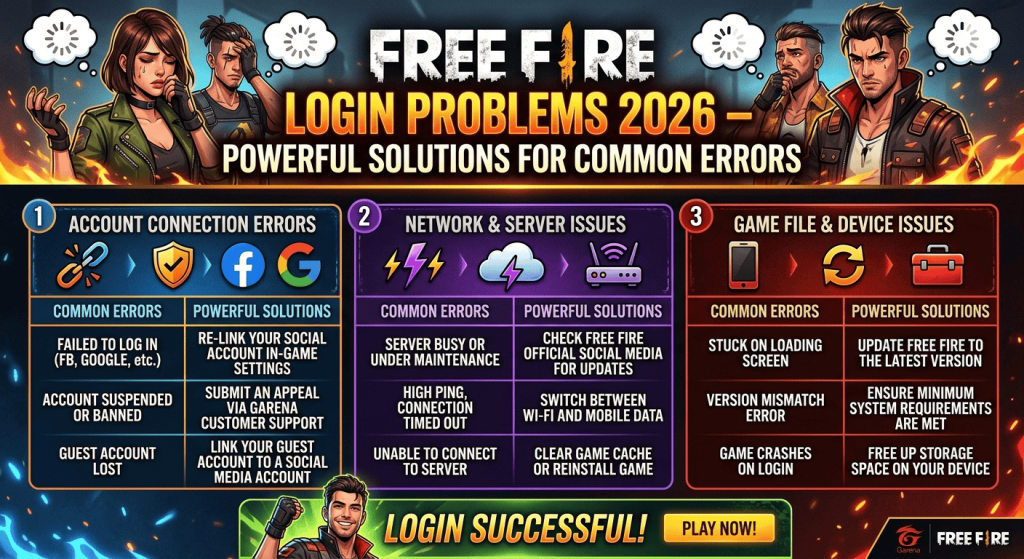
Free Fire login errors can occur for several reasons. Sometimes the problem comes from your device or internet connection, while other times it may be related to the game server or your linked account.
Common causes include:
- Weak or unstable internet connectivity.
- Temporary game server maintenance or service interruptions.
- Incorrect account credentials.
- Problems with Facebook, Google, Apple, or another linked login provider.
- An outdated game version.
- Corrupted temporary cache files.
- Device compatibility or software issues.
- Account restrictions or security checks.
Identifying the cause is the first step toward finding the right solution. Instead of reinstalling the game immediately, begin with simple troubleshooting methods that do not affect your saved data.
1. Check Your Internet Connection
A weak internet connection is one of the most common reasons a game may fail to load or complete the login process.
Free Fire needs a stable connection to communicate with its servers. If your Wi-Fi or mobile data keeps disconnecting, you may see loading errors, connection messages, or repeated login attempts.
How to fix it:
- Open another website or app to test your internet connection.
- Switch from Wi-Fi to mobile data, or try another reliable Wi-Fi network.
- Turn Airplane Mode on briefly and then turn it off.
- Restart your router if other devices are also experiencing connectivity problems.
- Close unnecessary apps that may be using your network.
- Reopen Free Fire and try logging in again.
If other online apps work normally but Free Fire still cannot connect, the problem may be related to the game service or account authentication rather than your internet connection.
2. Check Free Fire Server Status
Sometimes Free Fire login problems are caused by server maintenance, technical issues, or temporary service interruptions. When this happens, changing your password or repeatedly reinstalling the game is unlikely to help.
Try these steps:
- Visit the official Free Fire website.
- Check official Free Fire announcements and social channels for maintenance notices.
- Wait if an outage or maintenance period has been confirmed.
- Try logging in again after the service becomes available.
Be cautious of unofficial websites claiming to offer instant server fixes. Never download unknown applications or provide your account credentials to websites promising special access.
If the official service is experiencing problems, waiting is generally safer and more effective than changing device settings unnecessarily.
3. Update Free Fire to the Latest Version
An outdated game installation may cause login failures, compatibility issues, or problems connecting to the current game service.
If you have not updated Free Fire recently, check whether an official update is available for your device.
For Android users:
- Open the Google Play Store.
- Search for Free Fire or Free Fire MAX, depending on which version you play.
- Open the game’s official store listing.
- Tap Update if the option is available.
- Wait for the installation to finish.
- Launch the game and test your login.
For iPhone users:
- Open the Apple App Store.
- Find your installed Free Fire version.
- Check for an available update.
- Install the update if offered.
- Reopen the game and try again.
Use the official store or an official Garena distribution channel available in your region. Avoid modified APKs because they may introduce security risks or cause additional compatibility problems.
4. Fix Facebook, Google, or Other Linked Account Errors
Free Fire players may use supported third-party accounts to access their game profiles. If the linked provider is not working correctly, you may be unable to enter the game even when your internet connection is stable.
For example, Facebook login might fail because you are signed out of Facebook, while Google authentication could encounter an account-selection or verification issue.
Follow these troubleshooting steps:
- Confirm that you are selecting the same login provider originally linked to your game account.
- Open the relevant provider’s official app or website and check whether you can sign in.
- Complete any required security verification.
- Update the provider’s app if an update is available.
- Restart Free Fire and retry the login process.
- Check whether the provider is experiencing a temporary service interruption.
Important: Do not create a new game account by mistake if your original account contains valuable progress. A different login method may open a separate profile rather than recover your existing one.
Never share your password, verification code, or account recovery details with strangers claiming they can restore your account.
5. Clear Free Fire Cache on Android
Temporary files can sometimes become corrupted or cause performance problems. Clearing the game’s cache may help resolve certain loading and login issues.
On most Android devices, you can clear the cache without deleting your account data.
Steps to clear the cache:
- Open your phone’s Settings.
- Select Apps or App Management.
- Find Free Fire or Free Fire MAX.
- Open Storage or Storage Usage.
- Tap Clear Cache.
- Restart the game and try signing in again.
Menu names vary depending on your Android phone manufacturer and operating system version.
Be careful not to select Clear Data or Clear Storage unless you understand the consequences. These options can remove local game files and settings, require you to download resources again, or sign you out. Make sure your game account is properly linked and recoverable before taking any action that could affect local data.
iPhone users generally do not have the same individual app-cache clearing option. Restarting the device or reinstalling the app may be necessary if temporary files appear to be causing a problem.
6. Restart Your Phone and Free Up Storage
A device with limited free storage, background software problems, or temporary system errors may struggle to run a game properly.
If Free Fire freezes on the loading screen or closes during login, try restarting your phone before making more significant changes.
Recommended steps:
- Close Free Fire completely.
- Restart your phone.
- Close unnecessary background applications.
- Check your available storage space.
- Remove unwanted files if your device is nearly full.
- Install pending operating system updates when appropriate.
- Open the game again and test the login process.
Avoid using aggressive third-party cleaning apps that request unnecessary permissions. Your phone’s built-in storage tools are generally sufficient for basic maintenance.
If the game continues to crash, check the game’s official compatibility information and make sure your device meets the applicable requirements.
7. Fix Date, Time, VPN, and Network Settings
Incorrect device time or certain network configurations may interfere with secure connections and account authentication.
If you have tried the basic fixes without success, check your phone’s date and time settings.
What to do:
- Open your device settings.
- Find the date and time section.
- Enable automatic date and time if available.
- Confirm that your time zone is correct.
- Temporarily disable a VPN or proxy if you are using one and it may be interfering with the connection.
- Try a different trusted network.
- Restart the game.
Do not use a VPN to bypass regional restrictions or account enforcement. If your account or region is subject to a specific restriction, contact official support for clarification instead.
Avoid changing advanced network settings unless you know what they do. Incorrect configuration can create additional connectivity problems.
8. Recover Your Free Fire Account Safely
If you cannot log in because you have lost access to a linked account, forgotten credentials, or encountered a security problem, account recovery may be necessary.
The correct recovery process depends on how the game account was originally linked and which recovery options remain available.
Steps to take:
- Identify the login provider originally connected to your Free Fire account.
- Try recovering access through that provider’s official recovery process.
- Complete the identity or security checks requested by the provider.
- Return to Free Fire and use the original linked login method.
- If the problem remains, consult official Garena support.
You may need details such as your player ID, approximate account creation period, device information, or relevant purchase records to help support investigate the issue. Only submit information requested through a verified official support channel.
Do not trust people who promise guaranteed account recovery in exchange for money. Never share passwords, OTPs, recovery codes, or complete payment information.
9. What to Do If Your Account Is Suspended or Restricted
Not every login error is caused by a technical problem. If you see an account suspension or restriction message, the issue may relate to account enforcement or a security review.
First, read the message carefully and save a screenshot if appropriate. Then visit the official support channel to review the available guidance or appeal process.
Avoid using modified game clients, unauthorised tools, scripts, or applications that claim to provide unfair advantages. These tools can put your account and device at risk.
Repeatedly reinstalling the game or changing networks will not necessarily resolve an account restriction. Follow the official process and provide truthful information if you request a review.
Free Fire Login Problems: Quick Troubleshooting Table
Use this table to identify the next step based on the error you experience.
| Problem | Recommended solution |
|---|---|
| Game stuck on loading screen | Test your internet and check for service interruptions |
| Facebook login not working | Verify access to the linked Facebook account |
| Google login error | Check the correct Google account and authentication |
| Game closes during login | Restart the phone and check available storage |
| Login fails after an update | Confirm the installation completed correctly |
| Repeated connection errors | Try another network and check official announcements |
| Lost access to linked account | Use the provider’s official recovery process |
| Account suspended | Consult official support for the applicable review process |
The most effective solution depends on the exact error message. If one method does not work, move to the next relevant step instead of repeating the same action.
How to Prevent Free Fire Login Problems in the Future
Although some problems are outside your control, good account and device habits can reduce the risk of future login difficulties.
- Keep Free Fire updated through official sources.
- Maintain a stable internet connection.
- Keep enough free storage on your device.
- Protect the account linked to your game profile.
- Use a strong, unique password for your linked account.
- Enable available security protections on your login provider.
- Save your player ID and relevant account information securely.
- Avoid unofficial APKs, modified clients, and suspicious login pages.
- Never share passwords or verification codes.
- Follow official announcements about maintenance and updates.
These habits can help you protect your account and make troubleshooting easier when a problem occurs.
Frequently Asked Questions
Why can’t I log in to Free Fire in 2026?
Possible reasons include an unstable internet connection, server maintenance, an outdated game version, a problem with your linked account, or an account restriction. Identify the error message and try the relevant troubleshooting steps.
How do I fix Free Fire login errors on Android?
Start by checking your internet connection, updating the game, restarting your device, and clearing the app cache. Avoid clearing app data until you have confirmed that your account is linked and recoverable.
Why is my Free Fire Facebook login not working?
The problem may involve Facebook authentication, an expired session, a temporary service issue, or selecting the wrong linked account. Verify that you can access the original Facebook account and then try signing in again.
Will reinstalling Free Fire delete my account?
Reinstalling can remove local game files and settings. Your account progress may remain associated with a properly linked account, but recovery can be difficult if you lose access to the original login method. Confirm your account recovery options before uninstalling.
Can I recover a lost Free Fire account?
Recovery may be possible depending on the linked login provider and the available official recovery options. Start with the provider’s recovery process and contact Garena support if needed. Avoid unofficial recovery services.
What should I do if Free Fire servers are down?
Check official announcements, wait for the service to return, and try again later. Reinstalling the game usually will not resolve a confirmed server-side outage.
Conclusion
Free Fire login problems in 2026 can arise from network issues, outdated installations, authentication errors, corrupted cache files, or account restrictions. Fortunately, many common problems can be investigated through simple steps such as checking your internet, updating the game, restarting your phone, and verifying your linked account.
Start with the least disruptive solution and avoid deleting local data until you understand the potential consequences. If the problem involves account recovery, suspension, or an issue that persists after troubleshooting, use official Garena support rather than relying on unverified services.
By following these powerful solutions and practising safe account management, you can troubleshoot common login errors more confidently and protect your Free Fire progress.