Are you facing a problem where your Free Fire download stuck issue prevents the game from installing or updating on your Android phone? This problem can be frustrating, especially when the download stops at a certain percentage, remains pending, or takes too long to finish. Fortunately, several simple troubleshooting methods can help you identify and fix the issue.
Free Fire download problems can happen because of an unstable internet connection, insufficient storage, Google Play Store errors, outdated Android software, or temporary server issues. Sometimes, the download may complete, but the installation process can still fail.
In this guide, you will learn how to fix Free Fire download issues step by step, improve download stability, and install the game safely without using suspicious APK files.
Why Is Free Fire Download Stuck on Android?
Before trying different solutions, it is useful to understand why the download is not progressing. Identifying the actual cause can save time and prevent unnecessary changes to your phone.
Here are some common reasons:
- Slow internet connection: Unstable Wi-Fi or mobile data can interrupt the download.
- Insufficient storage: Your phone may not have enough free space for the game and additional files.
- Google Play Store problems: Corrupted temporary data or pending updates can affect downloads.
- Outdated Android version: Older software may create compatibility problems.
- Temporary server issues: High traffic or service interruptions can delay downloads.
- Background applications: Other downloads and network-intensive apps may reduce available bandwidth.
- Incomplete download files: An interrupted download may need to be restarted.
Understanding these causes makes it easier to choose the correct solution.
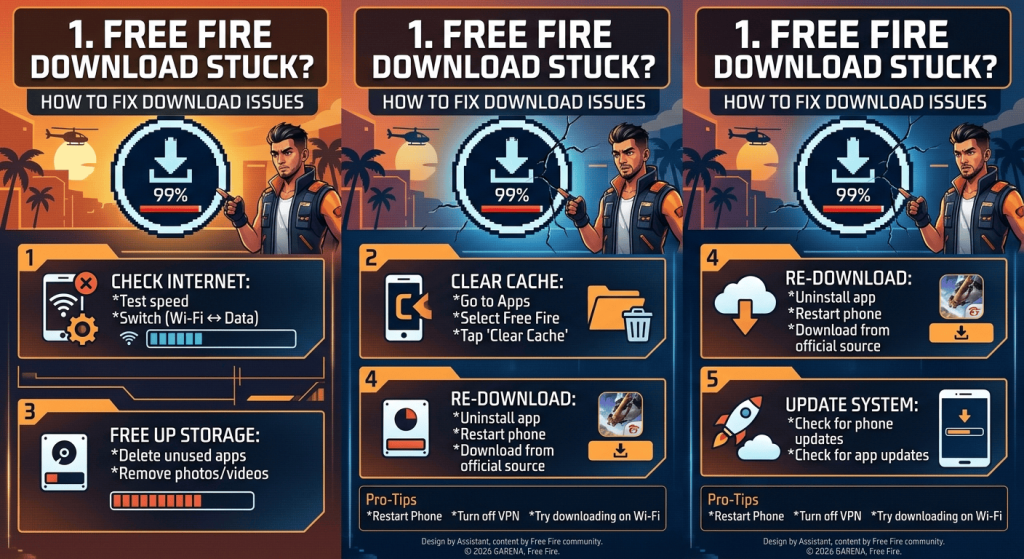
1. Check Your Internet Connection
An unstable internet connection is one of the most common reasons Free Fire downloads stop unexpectedly. Even if other applications are working, your connection may experience interruptions during a large download.
Try these steps:
- Turn off Wi-Fi or mobile data.
- Wait approximately 10 seconds.
- Turn your connection back on.
- Open Google Play Store again.
- Check whether the download continues.
If you are using Wi-Fi, restart your router if necessary. You can also switch to mobile data to see whether the problem is related to your Wi-Fi network.
Avoid downloading large files while your internet connection is frequently disconnecting.
2. Check Available Storage Space
Free Fire requires storage for the installation package, game resources, updates, and temporary files. If your phone is nearly full, the download or installation may stop.
Follow these steps:
- Open your Android phone’s Settings.
- Select Storage or Device Care.
- Check how much free space is available.
- Remove unnecessary files and unused applications.
- Clear unwanted downloads or duplicate media files.
- Restart your phone and try downloading again.
Remember that the initial app download size is not always the same as the total storage required after installation. Additional game resources may need extra space.
3. Clear Google Play Store Cache
Google Play Store stores temporary information to improve performance. Sometimes, corrupted cache files can interfere with application downloads.
You can try clearing the cache without deleting your installed games.
- Open Settings on your Android device.
- Select Apps or Applications.
- Find Google Play Store.
- Open Storage or Storage and Cache.
- Select Clear Cache.
- Reopen Google Play Store and try downloading Free Fire.
If the issue continues, restart your phone and check again.
Avoid clearing application data unless necessary, because this may reset certain Play Store preferences.
4. Restart Your Android Phone
A simple restart can resolve temporary software problems that affect downloading and installation.
Restarting your phone can:
- Close unnecessary background processes.
- Refresh network connections.
- Release some temporary system resources.
- Resolve minor application glitches.
After restarting, open Google Play Store and check whether Free Fire is downloading normally.
5. Update Google Play Store and Google Play Services
Outdated Google Play components can sometimes cause download and installation problems.
To check for updates:
- Open Google Play Store.
- Tap your profile picture.
- Open Settings.
- Find the About section.
- Check whether a Play Store update is available.
You should also make sure Google Play Services is enabled and functioning correctly.
If Google Play Store displays an error message, follow the relevant instructions in the Google Play Help Center.
6. Check Android Compatibility
Sometimes, Free Fire download problems occur because the device does not meet the game’s compatibility requirements.
Before downloading, check:
- Your Android operating system version.
- Available storage space.
- Device hardware compatibility.
- Google Play Store compatibility information.
Garena publishes the minimum requirements for Free Fire in its official support documentation. Check the latest information through the Free Fire Minimum Requirements guide.
If your device does not meet the requirements, downloading an older or modified APK is not a reliable way to solve the problem.
7. Cancel and Restart the Free Fire Download
If the download remains stuck at the same percentage for a long time, the download process itself may have encountered an error.
Try restarting it:
- Open Google Play Store.
- Find Free Fire in your downloads or pending updates.
- Cancel the download.
- Close Google Play Store.
- Restart your internet connection.
- Open the store again.
- Start the download from the official game listing.
If several applications are downloading simultaneously, pause the other downloads until Free Fire finishes.
8. Check Whether Free Fire Servers Are Experiencing Problems
Sometimes, download or login problems are related to temporary service interruptions rather than your phone.
Before changing your device settings, check official Garena announcements and support information.
You can visit:
If Garena announces maintenance or a service interruption, wait until the issue is resolved before trying again.
9. Download Free Fire From an Official Source
Downloading Free Fire from an unofficial website can create additional problems. Some APK files may be modified, incomplete, outdated, or unsafe.
For a safer installation:
- Open Google Play Store.
- Search for Garena Free Fire.
- Check the developer information.
- Confirm that the listing is the official game.
- Tap Install.
- Wait for the download and installation to finish.
You can also check the official Garena website for supported download options in your region.
Avoid websites promising unlimited diamonds, unlocked premium features, or modified versions. These files may put your device and account at risk.
10. What to Do If Free Fire Download Is Still Not Working
If none of the previous methods works, try these additional checks:
- Check whether Google Play Store downloads other applications successfully.
- Confirm that automatic date and time settings are enabled.
- Check for available Android system updates.
- Disable any VPN temporarily if it is interfering with the connection.
- Make sure parental or device restrictions are not blocking installation.
- Contact Garena Support if the issue appears to be related to the game.
When contacting support, provide your device model, Android version, internet connection type, and any error message displayed during installation.
Common Free Fire Download Problems and Their Solutions
| Download problem | Possible reason | Suggested solution |
|---|---|---|
| Download stuck at 0% | Network or Play Store issue | Refresh connection and restart Play Store |
| Download stuck at 50% | Interrupted download | Cancel and restart the download |
| Download pending | Other downloads in queue | Pause other downloads |
| Installation failed | Storage or compatibility issue | Free storage and check device requirements |
| Download keeps restarting | Unstable internet | Switch networks and try again |
| APK not installing | Incomplete or incompatible file | Use the official Play Store listing |
These solutions are general troubleshooting steps. The correct fix depends on the error message and your Android device.
Frequently Asked Questions
1. Why is my Free Fire download stuck at 0%?
This can happen because of an unstable internet connection, Google Play Store errors, or other pending downloads. Refresh your connection and restart the download.
2. How much storage does Free Fire need?
Storage requirements can vary depending on the game version and additional resources. Keep more free space than the initial download size so installation and updates can complete successfully.
3. Can I download Free Fire using mobile data?
Yes, if your network is stable and your mobile data plan allows the download. However, a reliable Wi-Fi connection may be more convenient for larger downloads.
4. Why does Free Fire download stop at 99%?
The installation or final verification process may be taking longer than expected. Check your available storage, wait briefly, and restart the download if it remains stuck.
5. Is it safe to download Free Fire APK files from third-party websites?
Not every third-party APK is safe. Files may be modified, outdated, or incomplete. The official Google Play Store or Garena-supported download sources are the recommended options.
6. Does restarting my phone fix Free Fire download problems?
Restarting can resolve temporary system and network issues. However, it may not fix problems caused by insufficient storage, compatibility, or service interruptions.
Conclusion
A Free Fire download stuck problem can occur because of internet interruptions, insufficient storage, Google Play Store errors, outdated software, or temporary service issues. Fortunately, most common download problems can be investigated through simple troubleshooting steps.
Start by checking your internet connection and available storage. Then clear the Play Store cache, restart your device, and verify compatibility. If the problem continues, check Garena’s official support channels before trying another installation method.
Always use trusted download sources to protect your device and Free Fire account. For more Free Fire installation guides, update information, and troubleshooting tips, visit ffapks.org.in.